
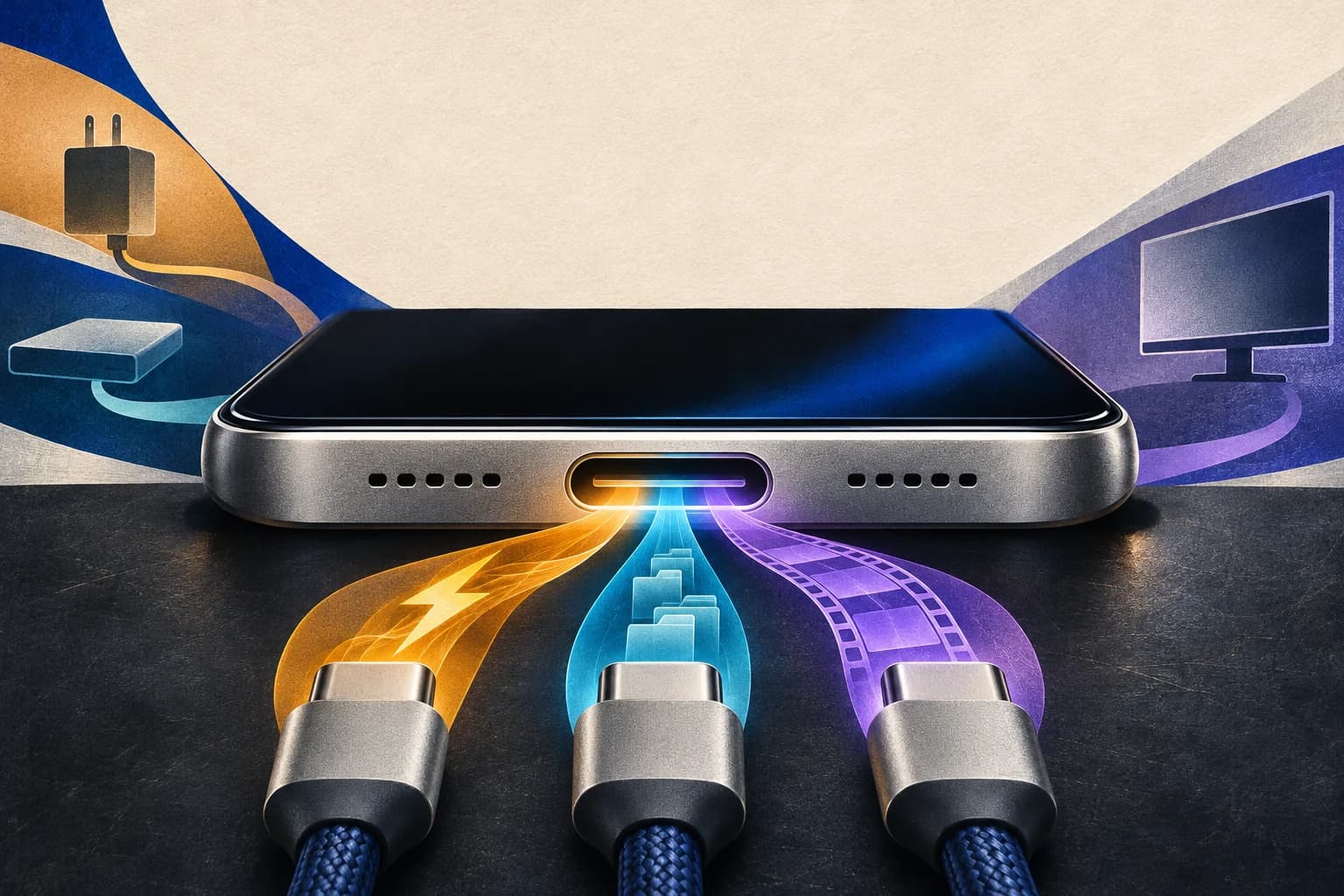
1. The three jobs hiding behind one plug
Imagine taking one USB-C cable on a trip. At the hotel, it connects your phone to a wall charger and the battery percentage rises. The next morning, you move the same cable to a computer: the phone starts charging, but no folder appears. In a meeting room, you connect the phone to a USB-C monitor and get no picture. These are three different observations, not three verdicts on the cable. The first confirms that power got to the phone. The second confirms that the computer supplied power, but leaves file access unresolved. The third tells you that this combination did not produce a picture, not which part of the combination prevented it.
The USB Type-C specification defines the reversible plug and receptacle and the behaviors that let two devices recognize a connection. A set of contacts called the Configuration Channel lets the devices detect attachment, determine which way the plug is inserted, establish initial roles and discover optional modes. That work happens before you see anything as recognizable as a folder or a mirrored screen. Reversibility means you do not have to insert the plug with a particular face up. It does not mean that every device with that receptacle has the same electronics behind it, or that the devices will find an optional mode they both support.
The standard distinguishes USB 2.0 Type-C connections from connections that carry additional high-speed signals. Both can use the same plug shape. A cable that carries USB 2.0 data is therefore not necessarily broken or charge-only because it cannot serve a job that needs those additional signals. There is a separate distinction at the phone: Apple, for example, specifies USB 3.2 Gen 2 at up to 10 Gb/s for certain iPhones with a suitable cable, while the cable Apple includes supports USB 2 speeds. The included cable can be entirely suitable for one job without demonstrating the fastest data capability of the phone it came with.
Connection diagram: [Phone] | [Cable or adapter] | [Charger, computer or display]. Software is a separate gate: [Phone setting or app] and, where applicable, [Computer or display setting]. Read the three hardware boxes for the job you want, not just for the plug you can see. Does the phone offer that function? Does the cable carry what the function needs? Can the device on the other end use it? Then check whether a setting, permission or app has to make the connection usable. A box can pass for power and fail for video, and the software gate can stay closed even when all three pieces of hardware are suitable.
At the hotel, the other end is a charger, so there is no folder or picture to look for in the first place. A rising battery percentage is enough to tell you that the setup is charging the phone under those conditions. It is not a measurement of charging power, and it reveals nothing about the cable’s data performance. At the computer, by contrast, the missing folder does not tell you whether a data link is absent or file access simply has not been enabled. Google’s instructions for wired file transfer from a Pixel to Windows or a Chromebook illustrate the difference: unlock the phone and select File transfer from its USB notification. A computer can supply power before the user takes those steps.
A monitor requires a different kind of agreement. VESA describes DisplayPort Alternate Mode as a way of carrying DisplayPort video over USB-C using high-speed lanes. The shared plug is what makes the connection physically plausible; support for the mode is what makes native video possible in that setup. Apple documents DisplayPort output on supported iPhones and lists exceptions, including the iPhone 16e and 17e. A blank screen on a model without that output is not evidence that the cable failed. Conversely, knowing the phone supports video does not establish that the cable, adapter and selected monitor input form a working path.
Suppose you have ten minutes before that meeting and can borrow one cable. A colleague offers one they use to charge a phone every night. That history is useful if your question is whether it can deliver power in a similar setup, but it is a poor reason to choose it for the screen. A cable already used for video with that display is a more useful substitution, provided you first establish that your phone can send the required signal. If the immediate problem is the missing computer folder instead, a cable known to transfer files is the better reference, and the phone’s file-transfer setting is still worth checking. The practical rule is to carry forward only the evidence the successful job gave you: working power proves a working power path in that setup, not a working data or video path.
2. What the phone actually asks the charger for
A USB Power Delivery charger does not start a session by pushing the number printed on its case into the phone. After the USB-C connection is detected, the charger acting as the power source advertises the options it can supply. The phone, acting as the power sink, requests an option it supports from that set. If the request is accepted, the two have an agreement about the supply. The roles describe which way power flows: the source supplies it and the sink receives it. As the USB Implementers Forum notes, the device providing power does not have to be the one controlling the data connection.
The charger’s output ratings are easier to read if you keep the units separate. Voltage, expressed in volts, is the electrical potential difference. Current, expressed in amps, describes the flow of charge. Multiplying the voltage by the current gives power in watts. For a listed fixed-voltage output, the current figure tells you how much current is available at that voltage under the stated conditions. It is not a claim that the phone will take that much. A phone can draw less than the agreed supply allows, and its draw can change while the same supply option remains in effect.
Google’s technical guide for its 30 W USB-C charger gives a concrete example. Among the adapter’s fixed USB PD outputs, Google lists 9 V at 3 A and 15 V at 2 A. The first works out to 27 W; the second works out to 30 W. Those are two alternatives, not two quantities to add together. The lower-voltage option offers more current, yet has a lower power ceiling. The higher-voltage option is how this pair of entries reaches the number on the case. Neither entry tells you which option a particular phone will request, or whether it will ever draw the full power that option permits.
Consider a hypothetical phone that can use the 9 V option in that example but does not accept 15 V. It cannot get 30 W by adding the missing three watts to the 9 V option. Getting 30 W at 9 V would require more than 3 A, which that fixed output is not listed to supply. If the phone instead requests 9 V and draws 2 A at a given moment, the resulting input is 18 W at that moment, even though the adapter can offer 27 W at that voltage. That arithmetic illustrates three distinct numbers: the adapter’s headline maximum, the ceiling of the applicable supply option and the power the phone actually draws. None of them is a measurement of how much power reaches the battery.
The same logic explains why a compatible laptop charger with a larger wattage rating does not force laptop-level power into a phone. The phone still requests a supply it supports, and an adapter with a higher ceiling is not automatically faster than a smaller one. That is also why taking the smaller of the two advertised wattages is not a complete compatibility rule. Imagine a phone and a charger both advertised at 30 W, but the phone cannot use the output the charger relies on to reach 30 W. They might share a lower-power option and charge normally on it. The matching numbers alone do not establish that there is a shared route to the advertised peak.
The cable can constrain that route as well. Google’s guide says output above 3 A requires a higher-current cable, such as a cable electronically marked for 5 A. That requirement is about the current of the chosen output, not the wattage alone. In Google’s pair of fixed examples, the 30 W option actually calls for less current than the 27 W option, and neither exceeds 3 A. If a different charging arrangement calls for more than 3 A, knowing that a cable has worked with either of these fixed outputs would not demonstrate that it meets the higher-current requirement.
If you are deciding whether to leave your phone charger at home and take the laptop brick, check the output list for that exact adapter and the charging guidance for your phone. Look for a shared option and note any cable conditions rather than comparing the largest numbers. Google’s Pixel guidance, for instance, says charging speed can vary with the adapter and cable; it does not assign one charging rate to every Pixel on a given brick. If the phone maker does not publish enough detail to identify the requested option, the charger label cannot fill that gap. You can establish what the charger offers and whether the manufacturer recommends that kind of supply, while leaving the actual request and charging rate unknown.
3. Why two equal-wattage bricks can charge differently
Imagine two travel chargers with the same maximum wattage. The first offers only fixed USB Power Delivery outputs. The second offers fixed outputs too, plus a Programmable Power Supply option that matches the phone you plan to bring. Either charger might supply enough power for an overnight top-up. The difference becomes relevant if the phone uses PPS for a faster charging mode: only the second charger can offer that particular route. It is also possible for the two to behave much the same with a phone that does not use PPS or that has a suitable fast-charging option among the fixed outputs they share. The feature matters because of what the phone requests, not because the letters appear on a box.
A fixed USB PD profile offers a specific voltage, with a stated current limit at that voltage. Once the devices agree on that fixed option, the phone can vary the current it draws without asking the charger to change the voltage. PPS adds a different kind of control. A compatible phone can request changes to the supply voltage and current limit within the supported range during charging rather than being confined to the listed fixed voltages. That gives the phone a way to ask for the supply conditions its charging system is designed to use. It does not mean the adapter decides what the battery needs, or that the phone will stay at the fastest setting throughout a session.
The distinction is visible in Google’s documentation. Its technical guide for the 30 W adapter lists fixed USB PD outputs separately from PPS outputs. The entries answer different questions: the fixed list tells you which discrete supply options the adapter offers; the PPS list describes the range in which a compatible device can make adjustable requests. Google’s Pixel charging guidance likewise distinguishes compatible USB PD and PPS adapters and notes that the cable and adapter can affect charging speed. That is family-level guidance, not evidence that every Pixel uses the same PPS range or reaches the same peak when connected to Google’s adapter.
To compare an adapter with a phone maker’s published requirements, start with the voltage span for the relevant PPS output. It has to cover the voltage the phone needs for the intended mode, and the current available at that voltage has to meet the requirement too. Read the range alongside any stated power ceiling and any separate current limits. The highest listed voltage and the largest listed current are not necessarily available together. A useful check is to multiply those figures: if the product is higher than the specified PPS power ceiling, the adapter cannot provide that combination. Even if the product fits under the ceiling, consult the stated limits for the particular range rather than assuming the label guarantees every point within it.
For a hypothetical shopping decision, suppose a maker specifies a PPS mode that needs 3 A at 9 V. One seller simply advertises a 30 W charger with PPS but provides no output breakdown. A second 30 W charger lists a PPS output covering 9 V with 3 A explicitly available there. The second listing gives you evidence for the required 27 W operating point; the first does not, even if the charger might turn out to support it. A third label could list a fixed 9 V output at 3 A and still fail to meet that particular requirement: the voltage and current match on paper, but the phone is expecting an adjustable PPS supply. It might use the fixed output in another mode, but the label does not tell you what rate that fallback would produce.
Keep three questions separate when reading a compatibility claim. Can the charger charge the phone at all? Can it support a fast-charging mode the phone actually uses? Does it meet the equipment conditions the phone maker gives for the advertised peak? A shared fixed profile can answer the first question without answering the second. Compatible PPS can answer the second for a phone that uses it without settling the third if the range, current limit or cable is wrong. Even when all the equipment requirements match, the published peak remains a conditional capability, not an independently measured rate for your session.
The best choice depends on what you are trying to improve. If the fixed-only charger already serves as an overnight spare, buying another one solely for a PPS label may solve no practical problem. If you are buying for short top-ups and the phone maker specifies PPS for the faster mode you want, look for the adapter that documents the matching PPS output and any cable requirement. Where the manufacturer publishes only a recommended charger rather than the exact profile, treat that recommendation as the evidence it is. A wattage badge, even one that exactly matches the phone’s advertised peak, cannot supply the missing compatibility details.
4. A brand’s fastest mode may not travel with the plug
OnePlus’s UK product page for the SUPERVOOC 100W Dual Ports Power Adapter lists up to 100 W in its branded mode, up to 65 W for fixed USB Power Delivery (20 V at 3.25 A) and up to 63 W for Programmable Power Supply. The UK manual identifies model VCBAUAYH and lists the same fixed PD and PPS ceilings. Both documents list up to 50 W per port in dual-port use. The manual’s separate efficiency table includes a 45 W test point at 20 V and 2.25 A, not a 45 W limit on fixed PD. Neither document makes the 100 W headline a fixed USB PD rating.
If you borrow this adapter for an unfamiliar phone while traveling, start with the standard outputs rather than trying to establish whether the two devices share the branded mode. If the phone maker calls for fixed USB PD, compare its documented requirements with the individual fixed outputs. If it calls for PPS, use the separate PPS entry and check the voltage range and available current. A PPS rating does not help a phone that uses only fixed profiles. And neither ceiling tells you whether the charger offers the specific option a phone needs to reach its own peak. The smaller numbers in the manual are more useful than the big one when they describe the mode you will actually use.
Suppose a traveler has a phone advertised to charge at up to 65 W with its own adapter, but its manufacturer identifies fixed USB PD as an alternative without giving a speed for it. The OnePlus UK product page’s 65 W fixed PD listing does not establish that the borrowed setup will reach that rate. The phone may not request the 20 V option, and that option’s full 3.25 A requires a cable rated for more than 3 A. The 65 W listing also does not apply when both ports are in use. Nor does the 63 W PPS entry make this a near match: without evidence that the phone uses PPS, the similar wattage tells you nothing about compatibility.
To attribute the headline mode to a particular setup, work from the phone as well as the charger. Check whether that exact phone supports the relevant SUPERVOOC mode, what maximum its manufacturer specifies with the adapter in question, and what cable the manufacturer calls for. A cable can fit and have a high certified power rating without establishing that it meets the requirements of the branded setup. If there are conditions on which port to use or whether another device can be connected, those conditions belong to the claim too. Matching the brand on the phone and brick is a reason to look for documentation, not a substitute for it.
Check the model number and region before relying on a rating. A store page in another country can use nearly the same product name without establishing that it sells the exact same model. If you have the charger in hand, compare its model number and output label with the documentation. If the exact fixed PD rating matters and you cannot match the unit to those specifications, ask OnePlus to confirm its output before relying on 65 W.
There is a useful middle ground between guaranteed fast charging and knowing nothing. If the phone maker documents a fixed PD option and the matching adapter manual lists it, you have evidence for a shared supply option. If the phone maker says only that USB PD is supported, you know which family of outputs to check, but you may still lack the details needed to establish a specific rate. Either is a better basis for a decision than the number on the front of the charger. Neither is a timing result, an observation of the phone's input draw, or a measurement of the power that reaches its battery.
Consider two reasons for packing that borrowed brick. If you need an overnight spare, a documented standard option that the phone accepts may be sufficient even if the fastest branded mode is unavailable. If you need enough charge during a brief connection between trains, the missing rate information matters more. For that job, a charger and cable the phone maker identifies for the desired mode, or a combination you have already checked under comparable conditions, is the firmer choice. The tradeoff is whether carrying a second adapter buys you confidence in a short top-up, not whether a charger with 100 W in its name ought to be faster.
5. How to read a cable after the packaging is gone
When you pull an unboxed USB-C cable from a drawer, look for two ratings, not one. A wattage mark describes the cable's power capability. A data-rate mark describes its signaling capability. The USB Implementers Forum's certification guidance separates the two and uses combined logos for applicable cable categories. It also allows a certified USB 2.0 USB-C cable to show a 60 W or 240 W power mark without displaying its nominal data rate of up to 480 Mb/s. So a genuine 240 W mark can be useful information even when it tells you nothing about a faster data mode. It does not mean the cable is charge-only, either.
Compare a certified 240 W USB 2.0 cable with the USB-IF's example of a 20 Gb/s, 60 W cable. The first is the better candidate for connecting a compatible laptop to a charger when the intended power mode requires more than 60 W and there is no high-speed data job to do. The second is a better candidate for moving a large video file from a phone that supports faster USB to a suitable computer, provided the connection does not need more than 60 W. Picking the 240 W cable for that copy because it has the bigger number means shopping for the wrong capability. Picking the 20 Gb/s cable for the laptop solely because it is the faster cable makes the opposite mistake.
Read a combined logo as two cable ratings, not as an end-to-end result. A 20 Gb/s cable does not turn a phone rated for up to 10 Gb/s into a 20 Gb/s device. Apple, for example, documents up to 10 Gb/s on specified iPhones with a suitable cable. A properly rated 20 Gb/s cable can be a candidate for that setup, but the phone and the device on the other end still have to support the desired connection. The same rule applies to power: a 240 W rating is a capability of the cable, not a promise of the supply the charger will offer or the phone will accept. If you are buying for one task, pay for the ratings the task needs.
An electronic marker answers a question that printed labels cannot answer for the equipment itself. It lets compatible equipment identify cable capabilities, such as support for higher current. Google's technical guide for its 30 W adapter notes that an output above 3 A requires a higher-current cable, such as one electronically marked for 5 A. That makes the marker relevant to whether the equipment can use a particular output. It is not a speed boost, and the presence of a marker alone is not a data-rate specification. Nor can you infer that a cable has the marker you need from the thickness of its jacket or the size of its connector shell.
A logo used under the USB-IF program has a defined meaning; an unexplained wattage claim in a retail listing is not the same evidence. Check whether the mark corresponds to a documented USB-IF logo and whether the maker's specifications cover the exact cable you are considering. A familiar-looking symbol in a listing photo does not establish that the pictured cable, the selected length and the item that ships are the same product. For a loose cable with no readable rating or identifiable model, leave the unknowns unknown. A charging check can establish that it charges in a particular setup, but it cannot recover the cable's certified rating or tell you what it will do in a different one.
For troubleshooting, choose the reference cable by the symptom. If a fast copy is slow, use a cable whose data rating meets the intended link and that has already worked for a comparable transfer. A cable that has only been used to charge the phone every night gives you no useful baseline for that comparison. For a blank display, use a cable documented for the intended video connection or already known to work with that display in a compatible setup. A power-only check does not exercise the video path. And even a suitable cable cannot establish that the phone sends video or that the monitor accepts it on the selected input.
Imagine packing a charging cable and a cable for moving footage on a work trip. If the footage cable also covers the charger's required power rating, one cable may handle both jobs. If the laptop needs more power than that cable is rated for, two cables with different strengths make more sense than choosing one by the largest number. Once you have identified them, a simple tag with the documented power and data ratings saves you from reconstructing the distinction later. If you label a cable based on use instead, be specific: 'works with this monitor' records an observation; 'fast USB-C' leaves the next person guessing which job it passed.
6. The second device changes the charger
Google's specifications for the Pixel Flex Dual Port 67W USB-C Fast Charger give three ceilings, and each answers a different question. With one device connected, either port can supply up to 67 W. With two devices connected, Google lists up to 60 W on either individual port. Across both ports with two devices connected, it lists up to 67.5 W combined. The first figure tells you what a port can offer on its own. The second limits one port in shared use, and the third limits the pair. The word 'either' gives you a choice of port; it does not say the charger can supply the individual maximum to both at once.
Imagine a laptop and a phone that, on separate compatible chargers, can request 60 W and 20 W respectively. Those requests add up to 80 W, more than the Google charger's published combined ceiling. Moving the devices to opposite ports cannot make those two power levels available simultaneously. Even if the laptop could get all 60 W in the two-device setup, the arithmetic would leave no more than 7.5 W under the published combined ceiling for the phone. That is a budget calculation, not a prediction that the adapter offers or assigns exactly 7.5 W to the other port. The allocation has to work with the supply options each device can use.
Google says the charger can prioritize a connected Pixel when two devices are charging. That claim is relevant if your phone matters more than your laptop during a short stop, but it does not give you a repeatable split to plan around. It does not say that every Pixel will take a particular wattage, or that the laptop will always get whatever remains after subtracting the phone's advertised peak. A phone and a laptop may both draw less than their respective arrangements permit. Google's Pixel support guidance also notes that the adapter and cable can affect charging speed. A priority feature and a phone's actual draw are two different pieces of information.
Before relying on a two-port charger, find the manufacturer’s output specifications for the exact model and port combination. If your device needs a particular fixed PD or PPS option, check the ratings for two-device use rather than assuming the solo profiles still apply. In the Mexico entry of Google’s regulatory guide, model GZE60 lists a fixed 20 V output at up to 3.35 A with one device and up to 3 A on either port with two devices, subject to the combined ceiling. That shows how the limit for one profile can change. It does not tell you how much power any particular phone and laptop will receive at the same time.
A useful check takes place at the desk or hotel outlet where the charger will be used, with the actual cables and devices. Start by connecting the laptop by itself, then do the same for the phone. Note whether each charges during the workload you expect, rather than merely checking for an icon at idle. Next, connect both and leave them running together long enough to see whether the setup serves the job. A hypothetical traveler might need the laptop battery to hold steady through a video call while the phone gains enough charge to go out again. Those are observable requirements; neither depends on proving that a port reached its published ceiling.
If you routinely plug the phone in while the laptop is already running, include that step in the check. Note whether either device shows a break in charging when the second cable is connected, whether it resumes without intervention, and whether anything changes after you unplug one device. Repeat with the connection order reversed if you expect to use it that way. Record the ports, cables, approximate battery levels, workload and what each device actually showed. A brief change in the charging indicator is an observation, not a measurement of its cause. Likewise, a smooth connection in one trial does not guarantee the same behavior with a different laptop or phone.
The result can change what you carry without telling you the precise split. If both devices meet their needs together, the shared brick earns its place even if neither comes close to its solo maximum. If the laptop loses charge during the work you need it to do, try giving it the charger to itself and moving the phone to a separate source, or charge the devices in sequence when there is only one outlet. If the phone is the time-sensitive device, check whether giving it the port alone makes a useful difference. A two-port charger is convenient because it can replace two bricks for a particular workload, not because two sockets imply two independent full-power supplies.
7. Peak watts cannot tell you when to unplug
At an airport gate, imagine plugging in a phone that is low on charge, has been sitting in your bag and will stay screen-off until boarding. On another trip, you use the same phone, cable and adapter, but the battery is already near full and you leave the screen on for navigation through the terminal. The adapter has not changed, yet the two stops are unlikely to buy the same amount of additional runtime. To understand why, follow the power after it enters the phone. The adapter’s maximum is a supply figure. What matters before boarding is how much energy the battery can store while the phone is connected.
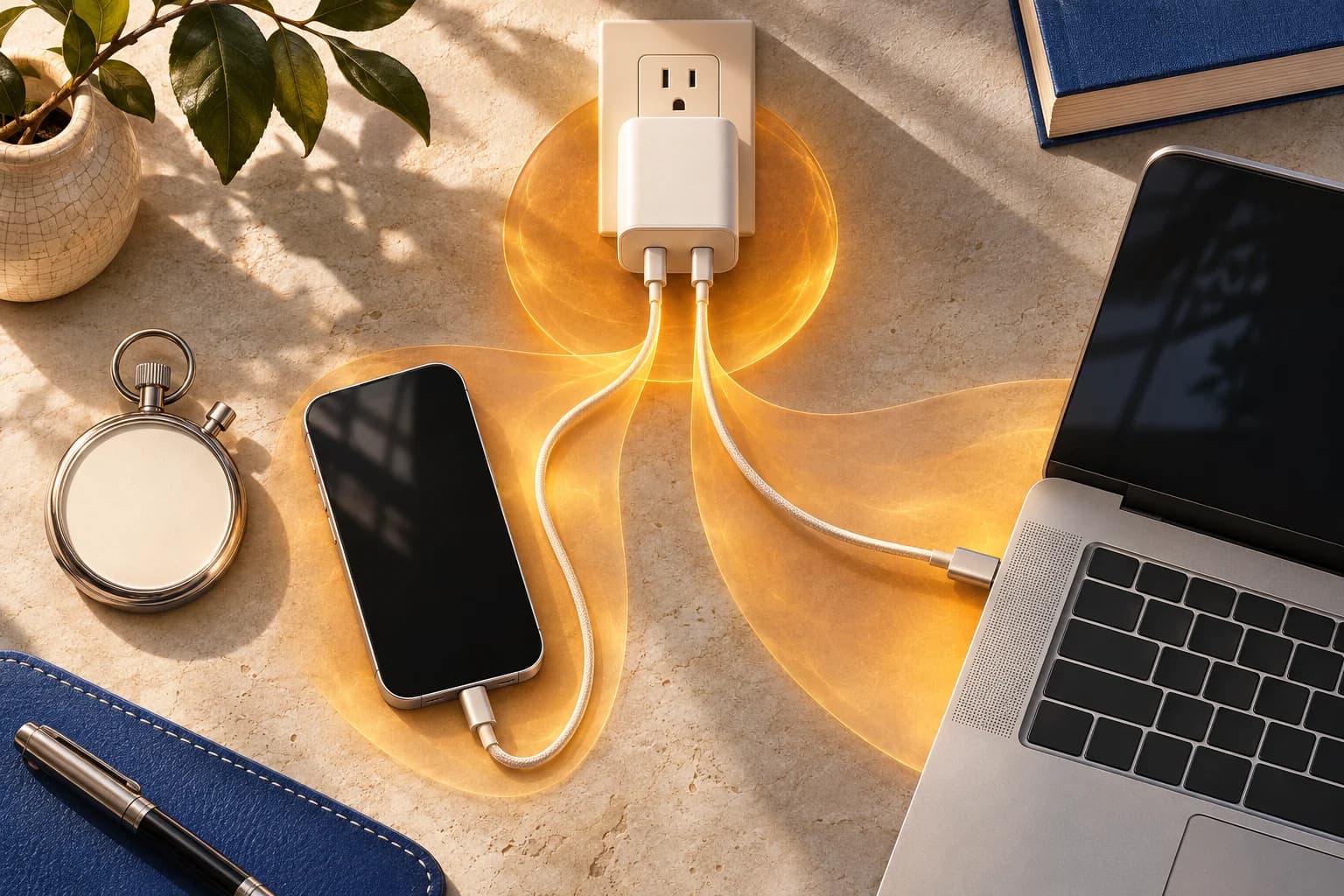
The phone’s input power is what it takes at the USB connection at a particular moment. Some of that power runs the phone, and some is lost as heat in the process of converting it to the voltages the phone and battery need. The rest can go toward charging the battery. A lit display, location tracking and an app updating a route all make demands on the system. Turning off the screen does not guarantee a particular charging rate, but it removes one demand that can compete for the available power. Even if an input meter showed the same wattage in both situations, that would not establish that the battery was gaining energy at the same rate.
Watts are a rate, not an amount stored. A high input reading just after you plug in tells you nothing about how long the phone can sustain it. Even a record of input power throughout the stop would describe energy delivered to the phone, not energy stored in the battery. And the percentage on the screen is the phone’s estimate of its state of charge, not a readout of either quantity in electrical units. For a traveler, that percentage is still useful: it can tell you whether the phone has reached a level you are comfortable leaving with. It cannot tell you from one glance why the gain was faster or slower than last time.
One reason for a slowdown requires neither a hot phone nor a special setting. As a lithium-ion battery approaches full, the charging system reduces current to keep the cell within its voltage limit. The amount of charge remaining may be small, but it is being added more slowly. That is why progress early in a session is a poor basis for estimating how long the final few percentage points will take. In the near-full airport example, even closing navigation and switching off the screen would not remove this constraint. A more powerful adapter cannot make the phone accept energy faster once the battery’s charging controls are setting the pace.
Temperature is a separate constraint. Google tells Pixel owners that charging speed can vary with use and that a warm Pixel can pause charging to protect itself, then resume after it cools. Navigation can matter in two ways: it uses power while the phone is plugged in, and the work it keeps the phone doing can contribute to warming it. Imagine setting the phone on a sunny windowsill to keep the terminal map in view. Moving it out of direct sun and turning off the display when you no longer need the map changes the conditions without changing the charger. It does not prove heat caused a slowdown unless the phone gives you evidence of that.
An intentional software delay can look similar from across the room. Google’s Adaptive Charging aims to finish near the time you usually unplug, and Apple’s Optimised Battery Charging can delay the final part of a charge. In those cases, getting to full later is the point, not evidence that the adapter cannot supply more power. If a phone appears to be holding at a percentage, check for a charging message and look at the active setting before swapping equipment. A planned finish shown by the phone is different evidence from a temperature warning. If there is neither, the percentage alone does not distinguish a software hold, reduced charging power near full or a gain too small to have changed the display yet.
At the gate, set an unplug target that fits what happens after boarding. If you will have power at your seat, you may not need to wait for the last few points. If you expect to use the phone for directions after landing with no outlet handy, you may value those points enough to stay plugged in until you have to leave. For the low, idle phone, look for progress toward that target rather than trying to infer it from the adapter label. For the near-full phone running navigation, ask whether you need the screen on continuously and whether the remaining gain is worth waiting for. Neither decision requires guessing a charging curve from peak watts.
8. What an 80% limit buys and what it costs
Consider a phone that spends most weekdays on a powered desk stand. It needs enough charge for a walk at lunch and the trip home, but it is rarely far from an outlet for the whole day. A lower charging ceiling can fit that routine: it reduces the time the phone spends near full, and the missing reserve may never matter. Now give the same phone a Saturday of rail tickets, maps and photos, with no reliable place to plug in. The missing reserve is no longer theoretical. The setting trades charge you could use today for less time spent at a high state of charge; it does not make the battery hold more energy.
A charge limit and a delayed finish make different trades. A limit ordinarily stops charging at a lower target, so you leave with less charge even after a long connection. A delayed finish still aims for a full battery but postpones the last part of charging, reducing the time the phone sits full before you unplug. The timing matters: if you disconnect earlier than the phone expects, a delayed finish may leave you with less than you planned. If you unplug on your usual schedule, the same feature can give you a full battery without having held it there all night.
Apple documents selectable limits from 80% to 100% in five-percentage-point steps on iPhone 15 and later. Optimised Battery Charging is available at the 100% setting, where it can delay the finish rather than impose a lower ceiling. Google distinguishes Adaptive Charging, which aims to finish near the usual unplug time, from a separate 80% limit on eligible Pixels. Both Apple and Google say their phones can occasionally charge to 100% despite a lower limit to keep battery readings accurate. If that happens, check that the limit is still enabled before assuming it stopped working.
The reason to consider a limit comes in part from calendar aging, the loss of battery capacity as time passes even when a cell is not being cycled through ordinary use. In an experimental study, Peter Keil and colleagues stored three types of commercial 18650 lithium-ion cells at different temperatures and at 16 states of charge. The storage design let the researchers examine how capacity changed while the cells sat under those conditions. Both temperature and state of charge were part of the experiment, a useful distinction when thinking about a desk stand: leaving a phone nearly full and leaving it somewhere warm are not interchangeable descriptions of how it spends its time.
The study did not find that capacity fade increased evenly with the stored charge percentage. The researchers observed plateaus, where changes in state of charge did not produce a corresponding step up in fade, and identified a role for the electrical potential of the graphite anode. That matters because a percentage is easy to turn into a rule that sounds more precise than the evidence. The researchers measured particular cylindrical cells in storage, not smartphone batteries under everyday charging and use. Their results do not show that 80% marks a universal threshold, that every five-point reduction offers a proportional benefit, or that selecting a limit will buy a specified number of extra months for a particular phone.
For the hypothetical desk phone, start with what it actually needs to do when it leaves the stand. If a lower ceiling still covers the normal time away from power with a comfortable margin, the immediate cost is small. If calls or an unexpected detour regularly eat into that margin, a higher selectable ceiling, where available, may be a better compromise. Delaying a full charge is another option if the phone spends most of its connected time charging overnight and comes off the charger on a predictable schedule. It is less directly suited to a phone that stays docked long after the scheduled finish, because the battery can still spend that extra time full.
For the day away from outlets, make the decision the night before. If the reserve matters, choose a setting that lets the phone finish charging before departure and check that its timing matches your plans. A deliberate full charge for travel and a lower ceiling during subsequent desk days serve different needs; there is no inconsistency in choosing both. Also distinguish that deliberate choice from a Pixel’s occasional full charge to maintain accurate capacity readings. One is about usable runtime for the owner; the other is about the phone’s estimate. Neither the software documentation nor the cell study puts a number on the long-term cost of that individual full charge.
9. Compare chargers with a stopwatch, not a screenshot
Suppose you want to know whether a smaller travel charger is a practical substitute for your usual brick during a short turnaround at home. Choose two outcomes before plugging anything in: how many percentage points the phone gains in a fixed window, and how long it takes to reach a useful target. For example, start each trial at 25%, note when the phone first shows 55%, and record the percentage at 20 minutes. Keep the phone connected until you have both readings, unless you reach a cutoff time you set in advance. Those are proposed test conditions, not expected results. The window represents the time you might have, and the target represents the charge you want to leave with. If those numbers do not fit your routine, pick ones that do and keep them unchanged for both chargers.
Use the same phone, cable and outlet for the comparison, with nothing else connected to either charger. Choose a cable that meets the requirements of both setups. Google’s technical guide for its 30 W adapter, for instance, specifies a higher-current cable for output above 3 A. If the two charging modes require different cables, test the documented pairings and describe the result as a comparison of charger-and-cable kits. That still answers a packing question. It just does not isolate the charger as the reason for any difference. Record the exact adapter models and ports so you can put the same arrangements back together later.
Start each run at the same displayed percentage and with comparable thermal conditions. Run at the same room temperature as far as practicable, leave the phone in the same place, and let it return to a similar resting condition after using it to bring the battery back down. Starting one trial right after gaming and the other after the phone has been sitting idle would give heat a chance to decide the result. Keep the case, screen behavior and workload the same. For a screen-off test, avoid periodically waking the display to watch the number; use the same brief checks at the same points in each run.
Check the phone’s charging settings before each run. Google and Apple document features that can alter when charging finishes, and a ceiling below the target would make time to that target meaningless. For a comparison of the adapters, choose a target and settings that do not introduce an intentional hold, and keep any model-specific charging mode unchanged. For a comparison of what happens in your actual routine, keep the settings you normally use and record any delay the phone reports. If you also want to know how the chargers fare with navigation running, make that a separate set of trials. Do not compare a screen-off run on one charger with an active run on the other.
Run each setup more than once and alternate which goes first, resetting the starting conditions between trials. Start the stopwatch when you connect the cable. Read the gauge at the fixed endpoint, and if you check the target at intervals, note that the phone could have reached it between checks. Log the starting and ending percentages, elapsed time to the target or whether it was not reached, room conditions, workload and charging settings. Note any temperature notice, reported charging delay or interruption. Keep a disrupted run in the notes with the reason it was unusual rather than silently dropping it or mixing it into the clean runs.
If you add instruments, decide which boundary you are measuring. A wall meter measures what the charger takes from the outlet, including power lost in the adapter. An inline USB meter measures voltage and current at the point where you insert it, which can show what is being delivered on the USB side, not how much reaches the battery after the phone runs itself and converts that power. The phone’s gauge instead estimates the state of charge. It is useful for comparing progress toward your target on the same phone, but a change in displayed percentage is not a direct measurement of energy delivered from the wall or into the battery.
An inline meter is also another device in the connection. If it cannot pass the relevant USB Power Delivery negotiation or handle the required voltage or current, it may prevent the setup from using the mode you meant to observe. Check the meter’s specifications for the relevant mode, including PPS if the phone and adapter use it. Keep the practical timing comparison free of the meter, and use separate instrumented runs if you want to investigate an observed difference. If adding the meter changes charging behavior, do not treat the instrumented reading as a description of the original setup.
Compare the spread across runs before choosing a winner. If one charger consistently gets you to the target sooner under comparable conditions, that is evidence for this phone, cable, workload and starting range, not a universal rating for the adapter. If the gains overlap or the difference is on the scale of a single displayed percentage point or the interval between checks, the test may not resolve it. Even a consistent lead need not matter: if both bricks reach the level you need before you leave, the smaller one may be the better travel choice. If only one regularly reaches it, you have a reason to carry that charger without ever needing to capture its highest wattage.
10. The difference between link rate and copy time
Suppose you have a 12 GB video clip on your phone and need it on a computer before you leave. The phone maker lists a USB speed of up to 10 Gb/s, so should the copy take about ten seconds? That figure is useful as a lower bound under ideal assumptions, not as a deadline. Before estimating the time, check whether the connection can run at the advertised rate at all. Then distinguish the rate at which the link can signal from the rate at which the computer can finish writing the clip. Buying a faster cable can help with the first problem. It does not necessarily solve the second.
Apple makes the distinction unusually clear in its iPhone documentation. It lists USB 3.2 Gen 2 at up to 10 Gb/s for specified iPhones when used with a suitable cable, but says the cable it includes supports USB 2 speeds. If you use that cable, the phone’s 10 Gb/s specification is not the number to start with. Conversely, buying a suitable high-speed cable cannot give a phone a data mode it does not support. The computer port matters as well. To evaluate a proposed upgrade, look up the specific phone and the specific computer port you intend to connect, not just the fastest USB rating listed somewhere on the computer’s product page.
The arithmetic starts with the difference between bits and bytes. USB data rates are quoted in bits per second; file sizes and copy dialogs commonly use bytes. There are eight bits in a byte. The nominal USB 2.0 rate of 480 Mb/s, cited in the USB Implementers Forum’s cable guidance, therefore converts to 60 MB/s before overhead. The 10 Gb/s rate converts to 1,250 MB/s on the same decimal basis. Those conversions put the headline rates in units you can compare with the file size. They do not turn them into measured file-copy speeds. In particular, 60 MB/s is the raw arithmetic equivalent of 480 Mb/s, not a claim about what a USB 2.0 copy dialog will display.
For a hypothetical decimal 12 GB clip, use 12,000 MB and divide by each of those rates. At 60 MB/s, the result is 200 seconds, or 3 minutes 20 seconds. At 1,250 MB/s, it is 9.6 seconds, or roughly 10 seconds. Both results assume that the link runs at its stated ceiling and that every bit of that capacity goes toward moving file contents, with no waiting at either end. That makes the calculation better at ruling out a plan than guaranteeing one. If you have only two minutes and your setup is limited to USB 2.0, the full 12 GB cannot fit even into that ideal budget. A 10 Gb/s connection removes that particular objection; it does not prove the copy will fit.
Actual transfers spend some of the link’s capacity on protocol traffic rather than the contents of the clip. The phone also has to read the source file and the computer has to accept and write it. If you are sending the copy to an external drive attached to the computer, that drive and its connection are part of the job too. A slow destination can leave a faster phone link waiting. That is why a high-speed cable can make a marked difference when the old link is the bottleneck and little practical difference when storage or the host workflow sets the pace. The advertised rates alone cannot tell you which limit you will encounter first.
The shape of the transfer matters even when the total bytes are identical. One large clip lets the system keep moving data for longer without starting another file. A batch of smaller clips, thumbnails and sidecar files adds work opening, creating and closing individual items. If you normally copy a folder from a shoot, timing one long video can help you compare cables for that specific workload, but it does not tell you how long the folder will take. Similarly, a brief speed reading while one file is moving can miss the time spent preparing the transfer or finishing it. For a departure deadline, the useful stop time is when you can open the completed copy at the destination.
If you are deciding whether to buy a faster cable for regular footage transfers, first check that the phone and computer support the intended rate. Then compare the current cable with a suitably rated one using the same representative files, port, destination and copy method. Record the elapsed time for the full job rather than comparing the highest rates shown by the copy dialog. If the faster cable makes the difference between missing and meeting your usual handoff window, the upgrade has a purpose. If the times are similar, compare destinations before spending more on a cable whose rating exceeds what your phone can use. The useful number is how long your files take to arrive, not how many bits the best component could signal in a second.
11. The phone charges but the folder never appears
You plug a Pixel into a computer to copy a photo, see the charging symbol and look for a folder that never appears. Before concluding that the computer cannot see the phone, check which USB function the phone is offering. Google’s instructions for Windows and Chromebook require a choice on the phone itself. Charging can begin without that choice, so the battery icon is compatible with both a working data connection that has not been opened for file access and a setup that has no usable data path. The goal is to find where the ordinary file copy stops, not to diagnose the whole connector from one symptom.
For a clean starting point, connect the Pixel directly to the computer with a cable you have already used for file transfer. Leave the dock, hub or monitor out of this first attempt. Unlock the Pixel, tap its USB notification and choose File transfer under the options for using USB. On Windows, Google’s documented workflow uses the file-transfer window that opens on the computer; on a Chromebook, use the Files app. Start by copying one small, recognizable file from the phone to a folder on the computer. Open the destination copy. That gives you more information than seeing the phone’s name in a window: it shows that the connection and selected mode were usable for at least one complete copy.
If you have been looking only at the computer, return to the phone before changing hardware. For example, suppose the Pixel was locked when you connected it and the computer showed no files. If unlocking it and selecting File transfer makes the files appear without changing the cable or port, you have found the step that was missing in that attempt. A locked phone or a file-transfer mode that has not been selected can look like a failed cable from the computer side. The distinction matters because replacing the cable would leave you with the same problem on the next connection if you still skipped the phone-side step.
If you do not get a usable USB notification with the phone unlocked, change one thing at a time. When the cable’s data history is uncertain, replace it with one that has completed a file copy, not merely one that reliably charges a phone. Keep the same direct computer port for that comparison. If you started with a known data cable and get nowhere, keep it and try another port on the computer, repeating the unlock and mode checks. If the direct connection works and you normally plug into a dock, put the dock back only after saving a successful test copy. A failure that returns with the dock in place implicates the changed path; it does not identify which part of the dock setup is at fault.
Distinguish a phone that never becomes visible from one that appears and lets you browse, but will not finish copying. In the second case, at least some data exchange and file access have already occurred. Note whether the phone disappears during the attempt, whether the computer reports an error, or whether the operation appears to finish but the destination file is incomplete. Try a second small file to the same destination. If small files succeed and a large clip does not, check the available space at the destination and try the clip again under the same direct connection. A small file is a good test of basic access, but it is not a test of whether the link stays usable throughout a longer copy.
Suppose you want to move an afternoon’s photos before clearing space on the phone. Keep the originals in place until you have checked the destination. After the small-file test, copy a representative batch and compare the files you intended to move with what is actually there. Check that the expected items open and that a large file has the expected size before treating that copy as complete. If the computer stops halfway through, record the last file that completed and whether the connection stayed visible. That is more useful for the next attempt than starting the entire batch again with a different cable, port and destination and not knowing which change mattered.
Google’s steps apply to the wired Pixel workflows it documents for Windows and Chromebook. They are not a promise that a Mac presents the same window, that another Android phone uses the same labels, or that a device migration utility relies on the same file-transfer setting. Use the instructions for that host and task if either changes. For the photo copy, the stopping point gives you a practical next move: if the phone never becomes visible, keep checking the data path and phone-side mode; if the phone stays visible and a test file opens on the computer, investigate the failed copy rather than treating the connection as if it never existed.
12. When the phone is the power source
Apple says an iPhone 15 or later can supply up to 4.5 W over USB-C to charge a compatible small accessory. If all you need is a top-up for that accessory, the practical check is whether it indicates that it is charging. Plugging in a microphone for an interview asks more of the same port. The phone may have to power the microphone throughout the session, recognize it as an audio device and pass its signal to the recording app. A light on the microphone can be useful evidence that it is receiving power. It is not proof that the phone is recording through it rather than through its own built-in microphones.
Power and data roles answer separate questions. The power source supplies electricity and the sink receives it. The data host controls the data session. The USB Implementers Forum notes that the power provider need not be the data host. In a simple phone-and-microphone setup, the phone might supply power and act as host at the same time. An accessory with its own power supply can still communicate with a phone acting as host without depending on the phone for all its operating power. The plug’s shape does not assign either role, and supplying power is not in itself evidence that the phone has recognized anything on the data side.
For the hypothetical interview, start with the microphone maker’s requirements for the exact model and the connection you intend to use. A USB-C receptacle tells you what fits, not whether the microphone can send audio over that connection or whether it expects power from the phone. Check that the cable carries data and that the microphone maker documents how to power the device with this phone. Apple’s 4.5 W figure describes charging compatible small devices; it is not a general operating-power specification for microphones. You still need evidence that the phone recognizes the microphone and that the recording app can use it.
Recognition and app support deserve their own checks because they can fail separately. Suppose the phone reports that an audio accessory is connected, but your app gives you no clear indication of which input it is using. Make a short recording with the external microphone near the speaker and the phone far enough away that playback can help you tell which microphone picked up the voice. Use the actual app you plan to record with and check any input selection it provides. If the take sounds like distant room audio, the connection indicator alone is not enough to sign off on the setup. If a different app records from the microphone, that helps narrow the unresolved question to the intended app or its settings.
Storage makes the power distinction concrete in another way. For supported 4K60 and 4K120 ProRes recording directly to external storage, Apple specifies a maximum drive power draw of 4.5 W alongside separate storage and connection requirements. The power figure is one condition, not a recommendation for every drive that fits the socket. A drive can receive power and still fail to appear as usable storage. It can also appear and let you browse existing files without meeting the camera workflow’s requirements. If you are checking a drive for a recording job, distinguish those outcomes in your notes instead of collapsing them into a single claim that the drive works with the phone.
A separately powered peripheral can help when relying on the phone for operating power is the obstacle. Imagine the microphone maker offers a documented externally powered configuration. If that is suitable for the phone connection, try it with the same app and verify the recording again. Providing power elsewhere does not turn a charging cable into a data cable, add support for the accessory to the phone or make the app select it. The powered configuration might also add an adapter or another cable. Verify that complete arrangement, especially if it needs a wall outlet or its own battery to keep running during the session.
Avoid applying the small-accessory figure to charging another phone. With two handsets, an identical connector at each end does not establish which phone will provide power, which will receive it or how much power will flow. Check the documentation for the exact pair rather than planning around an assumed direction or speed. If the job is keeping an interview kit running, decide what failure you need to prevent. Choose a verified, separately powered setup if the microphone cannot reliably run from the phone; change the app if the phone recognizes the microphone but the intended app does not use it; or use a dedicated charger if what you really need is to replenish a second handset. Those are different fixes for different failures.
13. A monitor needs video, not just USB-C
Suppose you are presenting from your phone in a room with an HDMI projector. Your slides include a short video, and you want to see your notes without putting them on the wall. A USB-C to HDMI adapter can address the difference between the phone’s video connection and the projector’s input. It cannot tell you whether the phone sends native video in the first place or whether your presentation app keeps the notes private. Those are separate checks, and either one can change what you need to bring. Start with the phone model and the app, not the resolution printed on the adapter.
VESA describes DisplayPort Alternate Mode as a way to use the high-speed lanes in a USB-C connection for DisplayPort video. When a phone and a compatible video accessory establish that mode, the phone sends a display signal over those lanes. With a compatible USB-C monitor, a suitable cable can carry that signal straight to the monitor’s video-capable USB-C input. With an HDMI projector, an adapter designed for this connection takes the DisplayPort signal from the phone and converts it to HDMI for the projector. It changes the format of an existing signal. A conventional adapter of this kind does not add native display output to a phone that lacks it.
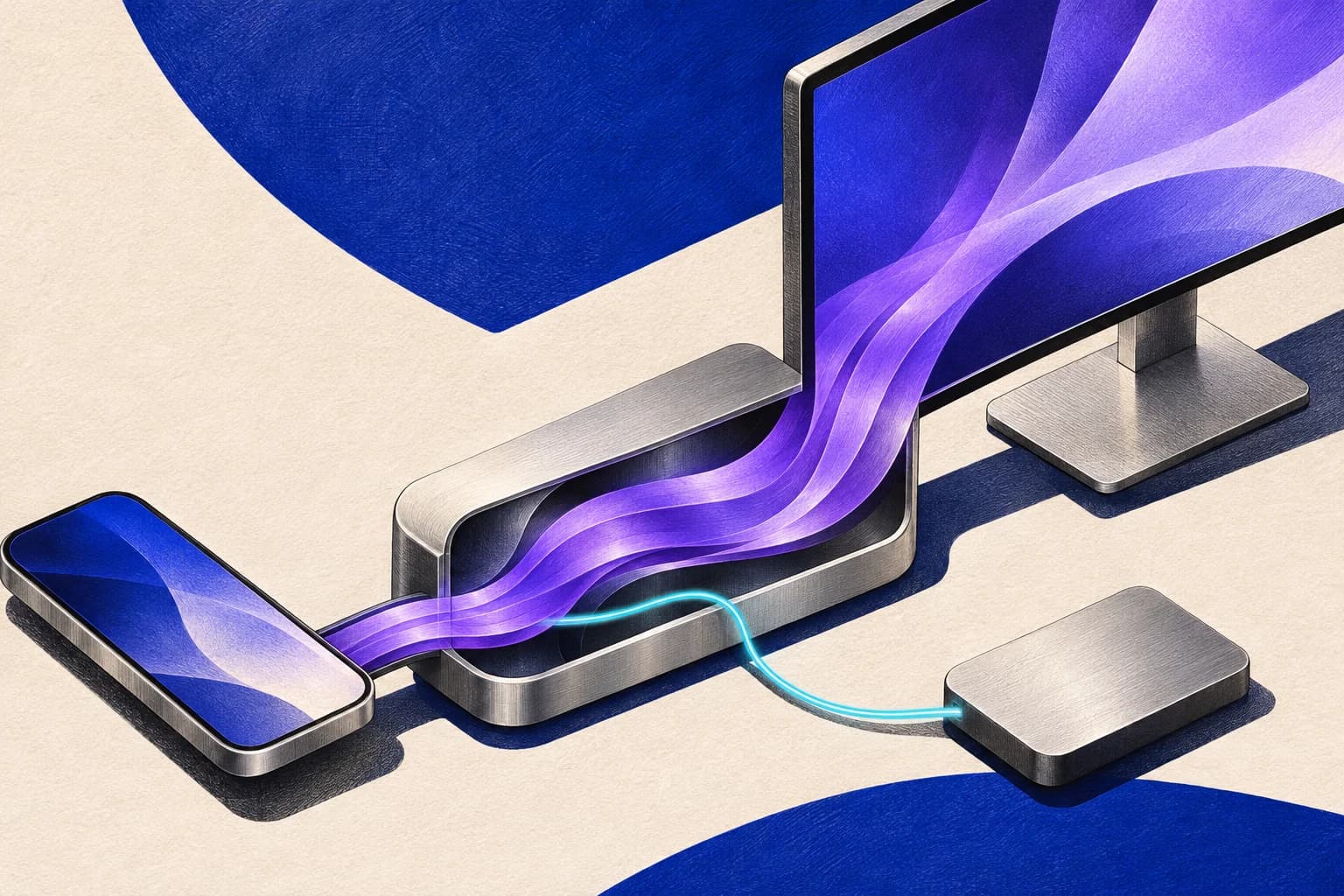
Before buying, check the manufacturer’s instructions for your exact handset. Apple documents up to 4K at 60 Hz over USB-C DisplayPort on supported iPhone connections, but excludes models including the iPhone 16e and 17e from wired display support. A listing that says an adapter is for USB-C iPhones does not settle whether your iPhone can supply the signal it needs. Google documents wired screen mirroring on Pixel 8 and later. Use that guidance to check the phone and the connection it calls for, rather than importing Apple’s resolution ceiling or assuming that a Pixel and an iPhone will offer the same display controls.
Read the display end as carefully as the phone end. On a monitor with several USB-C sockets, identify which one the manual describes as a video input. For HDMI, check which numbered input you can actually reach and select it on the display. If the venue provides a lectern connection rather than a cable straight to the projector, rehearse through the lectern; a successful connection to a spare monitor does not exercise that route. A 4K label on an adapter is not a report of the mode the entire chain will use. If the venue display shows its incoming resolution and refresh rate, note those separately from what the adapter advertises.
Once you have a picture, check what kind of picture you get. Mirroring reproduces the phone’s screen. An app-specific second-screen workflow can put different content on the two displays. Google describes a Slides workflow for supported wired Pixel connections in which speaker notes stay on the phone while the audience sees the presentation. That is evidence for the documented Slides workflow, not for a different presentation app or a document opened from a browser. A desktop environment is another proposition: it lets you work in an interface laid out for the external screen. Neither a mirrored picture nor a private notes view establishes that the phone offers one.
For the rehearsal, write down what the audience should see and what you should be able to do on the phone. Take the actual slide deck and open it in the app you intend to use. Connect at the venue input, start the presentation, advance several slides and look at both screens. Check that notes stay private if you are relying on that feature. Play the embedded clip and confirm that its picture and, if needed, its sound reach the room. Then stand where the audience will sit and check the smallest text you need them to read. A sharp settings screen is no substitute for a readable slide at the back of the room.
If the display stays blank, separate the connection check from the app check. On a phone documented to support mirroring, look first for an ordinary phone screen on the display, without the presentation running. On a supported Pixel, accept the Mirror display prompt on the phone if it appears. Confirm the display input, then substitute one known-working video component at a time where you can. If basic mirroring works and the failure starts only when you open the deck or play its clip, keep the working hardware in place while you investigate the app and file. If the deck displays but the notes are visible to the audience, that is a failed presentation requirement, not a failed video link.
The rehearsal can justify keeping an ordinary adapter if the slides are legible, the clip plays and the notes stay where you want them. If the hardware works but the app mirrors everything, you could use paper notes or switch to a second-screen workflow you have verified with that deck. If the phone lacks native video output or the venue connection remains unreliable, move the deck and clip to the room’s computer and test them there. That fallback solves a different problem from buying an adapter with a higher advertised resolution.
14. A dock can trade storage speed for display bandwidth
Consider a desk where one USB-C dock connects a phone to a monitor, a drive and a charger. The picture is fine, but moving footage to the drive takes longer with the monitor connected. That symptom is not enough to declare the dock faulty or the drive slow. In some DisplayPort Alternate Mode configurations, the dock and phone can use more of the USB-C link for video and leave less of it available for USB data. The relevant specification is how the dock handles display and storage at the same time, not the best number listed for either function on its own.
VESA illustrates two ways to allocate the high-speed lanes. In one configuration, DisplayPort uses two lanes and SuperSpeed USB can use the remaining high-speed lanes. That gives the monitor and the USB drive a way to operate together without relegating the drive to USB 2.0, though it does not guarantee a particular transfer rate. In another configuration, DisplayPort takes all four high-speed lanes. USB 2.0 can still run on separate pins, but there are no high-speed lanes left for SuperSpeed USB in that configuration. If the dock and drive support that USB 2.0 path, the drive can remain visible and keep copying while the monitor gets the wider video link.
It helps to sketch three paths for this particular desk. Video path: phone, dock, monitor, with DisplayPort using two or four high-speed lanes on the phone-to-dock link in the VESA examples. Storage path: phone, dock, drive, with SuperSpeed using available high-speed lanes or USB 2.0 using its separate pins. Power path: charger, dock power input, phone, with USB Power Delivery handling the power agreement on a compatible connection. A four-lane video allocation does not itself specify how many watts the phone receives. To answer the power question, check what the dock can pass through and what the phone can accept, rather than subtracting anything from the charging figure because a monitor is attached.
Before drawing a conclusion about a dock, look for documentation that describes concurrent operation. A product page might list a display mode and a high-speed USB port without saying whether both reach their advertised capabilities together. Check for notes tied to the intended resolution and refresh rate, which upstream port to use, and any dock setting that explicitly favors one function. Do not assume that every dock switches lane allocation when a screen is plugged in. The VESA examples explain what can happen with those Alternate Mode configurations; they do not describe every dock design or what a USB4 connection is doing internally.
For a practical baseline, check the desk functions separately before combining them. With the drive disconnected, confirm that the phone can put a stable picture on the monitor through the dock at a setting useful for your work. Next, disconnect the monitor and copy a representative clip to the drive through the dock. Record the port, file, destination and elapsed time, and open the completed copy. A direct connection from the phone to the drive, where supported, gives you a second comparison if the dock is already slow with no monitor. Finally, verify that the dock can charge the phone with the chosen adapter and cable. If the dock needs external power to operate, leave that power connected throughout the display and storage checks.
Now run the three jobs together. Display something you will actually use, repeat the same file copy with the same ports and cables, and observe whether the phone maintains or gains charge during the workload. If your equipment reports the USB link speed, record it along with the copy time. A reported change from SuperSpeed to USB 2.0 when the display is active is stronger evidence of a link change than a slower copy alone. A slower copy could also reflect what the drive or phone was doing. Likewise, a charging icon shows that the phone recognizes power; it does not establish that input is keeping up with the work the phone is doing.
Suppose the dock documents a display setting that preserves SuperSpeed USB. Try it and repeat the combined check. If the monitor remains comfortable to use and the copy finishes in the time you need, the lower display setting may be a better choice for that desk. If you need the higher display mode for a visual review but only transfer files afterward, disconnecting the monitor for the copy might be less disruptive than buying a different dock. If the copy remains slow with the monitor disconnected, the lane-sharing explanation has not resolved the problem; compare the docked and direct storage paths before trading away display quality. And if only charging falls short, investigate the power path rather than changing video settings on the assumption that lanes and watts share the same budget.
15. An SSD that copies clips can still fail during recording
Imagine preparing to film a long performance in ProRes. You plug an SSD into the iPhone, copy a finished clip to it and play the copy back. That is a useful check of basic storage access. It does not establish that the camera can record directly to that drive at the chosen setting. A file copy can slow down and still finish. During a live take, the storage has to keep accepting what the camera produces. If the setup cannot keep up, there is no way to recover the missed part of the performance by waiting a little longer for the drive.
Start with Apple’s ProRes compatibility information for the exact iPhone and frame rate you intend to use. Eligibility for ProRes, eligibility for direct recording to external storage and eligibility for a specific frame rate are not interchangeable. If you want 4K at 120 frames per second, look for Apple to list that external recording combination for your model; support for 4K at 60 frames per second is not a substitute. Decide whether you actually need the higher frame rate before buying around it. If the project calls for 4K60 and the phone supports it externally, the relevant write requirement is different from the one for a 4K120 shoot.
For the supported setups, Apple calls for an exFAT drive and a USB 3 cable rated for at least 10 Gb/s. The cable supplied with the iPhone supports USB 2 speeds, according to Apple, so it is not the cable to choose for this job. Read the data rating rather than the wattage on the jacket. A cable rated to carry plenty of power can still fall short on data. The converse matters too: a 10 Gb/s cable meets the specified cable rating but cannot make a slower drive write faster. Its rating describes the connection, not the amount of footage the SSD can reliably save each second.
Apple specifies a minimum drive write speed of 220 MB/s for 4K60 and 440 MB/s for 4K120. These are workflow requirements from the phone maker, not measured results for a drive you are considering. A prominent peak read figure on an SSD box describes data coming off the drive, whereas recording sends data in the other direction. Even a quoted peak write figure leaves open how long the drive can keep up that rate. Look for evidence about sustained writes on the exact drive rather than choosing by the largest number on the box. If the available information does not establish sustained performance, treat the drive as a candidate for rehearsal, not a confirmed recording setup.
Apple also specifies a maximum drive power draw of 4.5 W for these configurations. A drive can have enough write performance and still fail to meet the power requirement. Do not use the cable’s rating to infer how much power the phone can provide, or treat a drive that mounts at idle as proof that it meets Apple’s limit. If a mount, enclosure or adapter is part of the planned rig, check the complete connection. A successful direct connection does not verify the same drive through a hub, and Apple’s requirements do not establish that a particular hub belongs in the recording chain.
Before formatting, copy anything you want to keep to another device and verify that the copies open. Formatting erases the contents, so confirm you have selected the intended volume before proceeding. Use exFAT as Apple specifies. For 4K120 ProRes, Apple requires you to reformat the external drive before each recording session. Do not erase a drive containing the only copy of footage to get it ready for the next job. If your schedule leaves little time for offloading, arrange a separate prepared drive or make enough time to copy and verify the footage before you need to erase anything.
Rehearse with the intended frame rate, cable, drive and physical rig, and allow enough free space for a take as long as the one you expect to shoot. Confirm that the camera is recording to the external drive, and run the take for the planned duration rather than stopping after a few seconds. Check for warnings or an early stop. Play the finished file from the drive, confirm the expected duration, and check the beginning, several places in the middle and the end. Then copy it to separate storage and verify that copy too. The rehearsal should exercise both the recording and the handoff, since getting the file safely off the rig is part of the job.
Record which phone, mode, cable and drive passed and how long the take ran. A successful rehearsal supports using that combination for that job; it does not establish that the drive can sustain every mode on the phone. If 4K120 fails and the production can use 4K60, rehearse again at 4K60 rather than assuming the lower requirement settles every other issue. If the higher frame rate is essential, replace the component you have reason to suspect and repeat the full take. For a performance that will not be repeated, a verified lower frame rate can be more valuable than a higher one the rig has never sustained.
16. A liquid alert changes the troubleshooting order
If an iPhone shows a liquid-detection alert when you plug in a cable or accessory, disconnect it. Do not repeatedly reconnect it to see whether the message goes away. Apple says the alert can block both charging and accessory connections. So if an iPhone stops charging and also stops recognizing an attached microphone after the alert, those are not necessarily two faults. The same protection can account for both. What the alert cannot tell you is whether the moisture is in the phone’s connector, on the cable end or on the accessory you just attached.
Apple’s guidance is to let the equipment dry in an area with airflow. Leave the phone and the suspect cable or accessory disconnected while they dry. Do not use an external heat source or compressed air, and do not push a cotton swab, paper towel or other object into the connector. Apple also advises against putting the phone in rice. A cable that looks dry from the outside is not a reason to ignore a returning alert. If the message comes back on a later attempt, disconnect again and allow more drying time instead of cycling through the cables in your bag while the port may still be wet.
Suppose the alert appears at a hotel after a cable was carried in a damp outer pocket. The useful decision is to take that cable out of circulation while everything dries, not to find a brick powerful enough to charge through it. If you need the phone for a room key or a boarding pass, conserve the charge you have and make another arrangement for access while you wait. Treat a displayed emergency override as exactly that, not as a way to find out whether the warning is justified. Getting a charging indicator after overriding the alert would not establish that the connector is dry.
Once the equipment has had time to dry, the pattern of any returning alert can help you decide what to do next. Apple says that if an alert keeps appearing with a particular cable or accessory, that item may be damaged; contact its maker. Take it out of your kit rather than continuing to use it because it worked yesterday. If the alert persists with Apple cables or accessories after drying, Apple says the phone may need service. That distinction gives you a sensible next step, not a diagnosis you can make from the screen. An alert that follows one accessory is a reason to suspect that accessory; repeated alerts across connections are a reason to stop substituting parts and seek help.
Set that procedure apart from an ordinary failure at a port you have no reason to think is wet. Suppose the phone did not gain charge overnight, there was no liquid alert and nothing suggests recent exposure. Check what it actually shows before replacing anything. A phone that reports a temperature-related pause is giving you a different clue from a phone that never indicates a connection. Google, for example, documents that a warm Pixel can pause charging and resume once it cools. That is guidance for a Pixel, not an interpretation of an iPhone’s liquid warning. And the absence of an alert is not permission to plug into a port you already suspect is wet.
In the ordinary dry case, change one part at a time. Keep the outlet and charger fixed and substitute a compatible cable that has charged the phone successfully before. If nothing changes, keep that cable and try a known-working compatible charger. Then try a known-working outlet if the phone still does not respond. Note whether each change brings back a charging indication and whether the percentage actually rises during a reasonable check. If swapping only the cable restores charging, that narrows the problem much more than swapping the whole kit at once. It does not tell you whether the old cable failed electrically or simply made an unreliable connection.
Choose the substitute for the question you are asking. If the immediate symptom is no charging, the reference cable does not need to be your fastest file-transfer cable. It does need to support the charging arrangement you are trying. Google’s 30 W adapter guide, for example, distinguishes the cable requirements for outputs above 3 A. If basic charging returns but a faster mode does not, that is a separate question about the replacement setup, not evidence that the original fault is back. Likewise, if you first noticed a missing accessory as well as absent charging, check the accessory independently only once the connection is dry and safe to use. A wet-connector warning calls for waiting or service; a dry setup that recovers after one substitution gives you a specific item to retire or replace.
17. The car’s charging port may not be its data port
Imagine sitting in a parked rental car with a route ready on your phone. The battery icon shows that the phone is charging, but Android Auto never opens on the dashboard. Before going back to the rental counter for another cable, find out what the socket is connected to. Google explicitly warns that a vehicle having a USB port does not establish that it supports Android Auto. Even in a compatible vehicle, it matters which socket you use. A port intended for passengers to charge their phones can do that job perfectly without being the connection the infotainment system expects.
Look up the instructions for the vehicle and the installed head unit, not just the name on the trunk. Use the relevant model year, trim and infotainment system if the documentation makes those distinctions. Check that it supports the dashboard platform you want and that the instructions cover a wired connection. Then locate the specified port by its position or label in the manual. That matters when one socket is on the dash and another is tucked inside the center console. If the car has an aftermarket receiver, consult that receiver’s instructions as well: the original vehicle manual may describe equipment that is no longer in the dashboard.
Once you have identified the correct port, make a direct test with the car parked. For Android Auto, Google recommends a short cable and advises against hubs and extensions. A cable you have already used successfully for data is a better starting point than one you know only from charging. Make the first connection without the extension you normally use to reach a mount or the hub you brought for other passengers. If the short, direct setup works, put back only the extra piece you actually need and test again. If the failure returns, you have found a change that matters in this setup, even if you have not established exactly what that piece does to the connection.
An older USB-A socket does not by itself disqualify a USB-C phone. Apple’s connectivity guidance establishes that a compliant USB-A to USB-C cable can be appropriate in a compatible setup. That is a reason to try the correct cable when the vehicle provides USB-A for the intended connection, not a claim that every USB-A port supports CarPlay. Go back to the vehicle or receiver documentation for that. The same shopping mistake can derail either platform: a bigger wattage number describes power capability, not whether a cable carries the data the infotainment system needs. Replacing a suitable data cable with a higher-wattage one will not add a missing dashboard feature.
Keep the software check distinct from the cable check. With the direct connection in place, look at the infotainment settings and follow the setup prompts in the vehicle and phone instructions. Google directs Android Auto users to check the infotainment settings. It also suggests checking whether the maker of an aftermarket receiver offers a firmware update. Use the update information for the installed receiver, not an update advertised for a similar-looking unit. If enabling the appropriate dashboard setting solves the problem with the cable unchanged, there is no reason to buy a cable. If the platform is already enabled and changing only the cable brings it up, you have a much better basis for replacing the original one.
Define success before you start moving. Seeing the car’s USB or media screen is not the same as opening the dashboard interface you wanted. Check that the interface opens, that the route appears on the vehicle display and that guidance comes through the speakers if you are relying on it. If the interface never opens, note the port used and whether either screen showed a prompt. If it opens and drops out later, note when that happens and whether you can repeat it while parked. Those observations separate a setup that never gets through initial connection from one that cannot remain usable. They also make it easier to explain the problem to a rental desk or receiver maker without reducing it to ‘the USB port doesn’t work.’
A dedicated power adapter plugged into the car’s accessory outlet serves a different purpose. It can be useful if the phone needs more power than the car’s infotainment connection supplies, but it does not provide a wired data path to the head unit. If the rental turns out not to support the platform you need, a compatible power adapter and a lawful, safely positioned phone mount may let you use the phone for guidance without trying to retrofit the dashboard in the parking lot. If the documented infotainment port does work but a cable cannot reach the intended mount without an extension, change where the phone sits rather than assuming a longer chain will behave the same. The useful purchase is the one that addresses the actual shortfall: a data cable for the documented connection, or a compatible charger for power alone.
18. A rehearsal for the gig you cannot repeat
A creator has one evening to present a short film on a borrowed venue display, record a 40-minute discussion directly to a drive and hand off the recording from a laptop. There is one convenient outlet, so the creator plans to share a two-port charger between the laptop and phone during setup and handoff. Before the rehearsal, put a pass condition beside each job. The film must play from start to finish on the selected venue input, with intelligible sound in the room. The phone must save a complete 40-minute take to the external drive and produce a verified copy. The shared charger must keep the laptop from losing charge during a representative handoff while the phone gains enough charge for the trip home. Pick that last target and the time available in advance.
Turn the pass conditions into an equipment list. Write down the exact phone, playback and recording apps, display input, adapter, cables, drive, charger ports and laptop. Check the phone maker’s documentation against what you wrote. Apple lists wired display support and ProRes recording options by model; eligibility for one does not establish eligibility for the other. Google’s documented wired Pixel mirroring and Slides workflows are useful if that is the presentation setup, but they do not establish what a different app sends to the screen. If the venue offers an HDMI input through a wall plate, that path belongs on the list. A direct test on a monitor at home can prepare you for the venue visit, but cannot sign off on the wall plate.
Run the film on the actual display with the final file and the intended playback app. Have someone listen from a seat in the room while you operate the phone where you will stand. Start the film the way you will on the night, including any transition from a title card or introduction. If the picture works but sound does not, write that down as the failure instead of replacing the entire video chain. Try the venue laptop with the same file and verify the sound from that seat again. A fallback is ready only when it has passed the same requirement that the original setup missed.
For the recording, choose a mode your exact phone supports for external capture, then check the drive format, sustained write requirement, cable data rating and drive power against Apple’s documentation if you are using direct-to-drive ProRes. Rehearse with enough free space for the whole discussion and keep the phone and drive mounted as they will be during the event. Record for the full 40 minutes, not just until a file appears. Confirm the duration, spot-check sound and picture across the take, and verify a copy on the handoff destination. Time that handoff as well. A recording that takes longer to deliver than the venue allows may require a different delivery plan even if the camera setup passes.
Draw a simple schedule showing which cables are connected at each stage. If the phone presents first and records later, test the changeover: stop playback, disconnect, attach the recording drive and get to the point where you can confirm that the take has started. Do not add a dock just to avoid that swap unless the combined connection serves a real requirement. If you must keep a display active while writing to storage through a dock, rehearse both together for the full take. VESA’s DisplayPort Alternate Mode examples explain why a dock can provide a picture while leaving only USB 2.0 for storage in some configurations. Separate passes for the screen and drive are not a pass for that combined arrangement.
Exercise shared power during the part of the schedule that actually calls for it. For example, run the laptop’s transfer and verification workload while the phone charges on the other port. Google publishes different limits for solo and shared use on its 67 W dual-port charger, so its single-device rating is not a prediction for this test. Plug the devices in in the order you expect to use them and record their battery readings at the beginning and end. If the phone must spend the discussion disconnected from the charger, note whether it starts and finishes the full rehearsal with enough reserve. Charging successfully during handoff does not answer that earlier question.
Here is a sample worksheet with hypothetical entries. Presentation: combination, phone and playback app through the venue HDMI wall plate; observable result, full picture but no room sound; failure point, audio output not yet isolated; fallback, venue laptop, signed off only after the full film plays with sound. Recording: combination, eligible iPhone, selected 4K60 ProRes mode, rated cable and prepared drive; observable result, complete 40-minute take and verified laptop copy; failure point, none observed in that run; fallback, separately rehearsed lower-data recording mode. Shared power: combination, laptop and phone on the two labeled ports during handoff; observable result, laptop holds steady but phone misses its agreed target; failure point, shared top-up falls short under that workload, exact power split unknown; fallback, give the phone a solo charging window before the event and verify the target.
Make the packing decision while there is still time to rerun a failed job. Replace one confirmed bottleneck and repeat its test. If the timing or port arrangement is the problem, change the workflow and rehearse the transition. If the venue setup remains unverified, bring the known-good kit rather than betting the only take on a combination that has never passed.