Google Maps: Turn on driving alerts
Before you drive, open Google Maps on your Android phone. Tap your profile photo, then go to Settings > Navigation and turn on “Get alerts for reported incidents and other conditions that may impact your drive.” As Engadget reports, this is the general incident-alert switch, not a separate control for speed cameras.
Camera reports rely on information shared by other drivers. Treat an alert as a heads-up, not confirmation that a camera is still there. If you don't get an alert, that doesn't mean the road has no cameras.
Sources: How to get warnings about speed cameras in Android Auto.
Waze: Choose which camera alerts you want
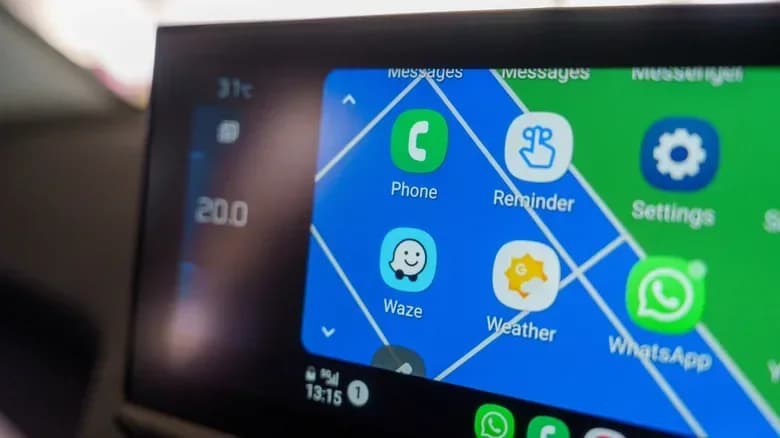
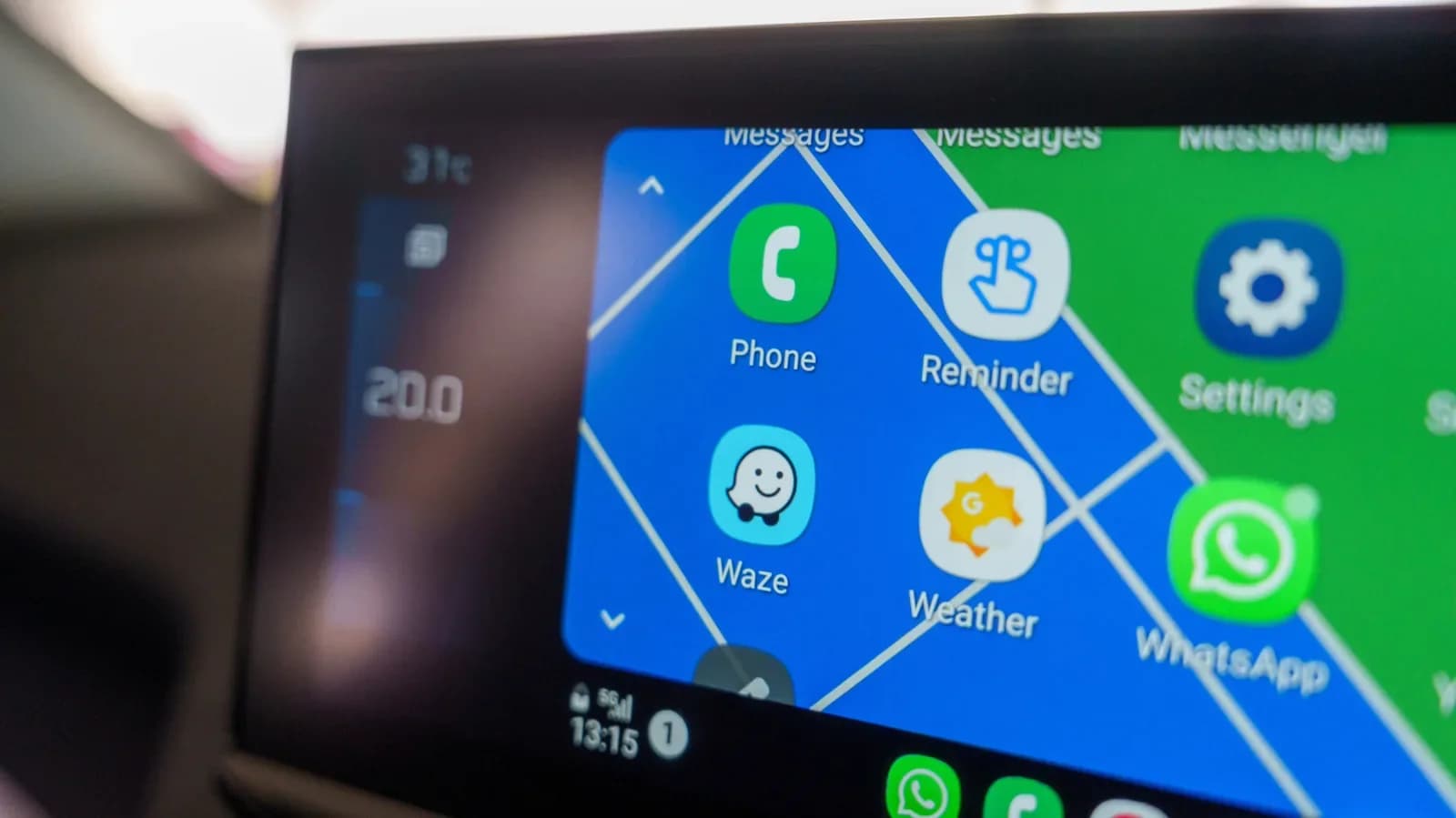
Open Waze on your phone and go to Settings > Alerts and reports > Reports > Cameras. Waze lets you choose which camera categories to receive alerts for while driving, including speed cameras, red-light cameras and mobile police cameras. Those settings carry over when you use Waze through Android Auto.
The practical difference is that Google Maps groups camera reports with other driving alerts, while Waze lets you choose by camera type. Neither app can warn you about every camera.
Sources: How to get warnings about speed cameras in Android Auto.
Display the speed limit and set a separate speed warning
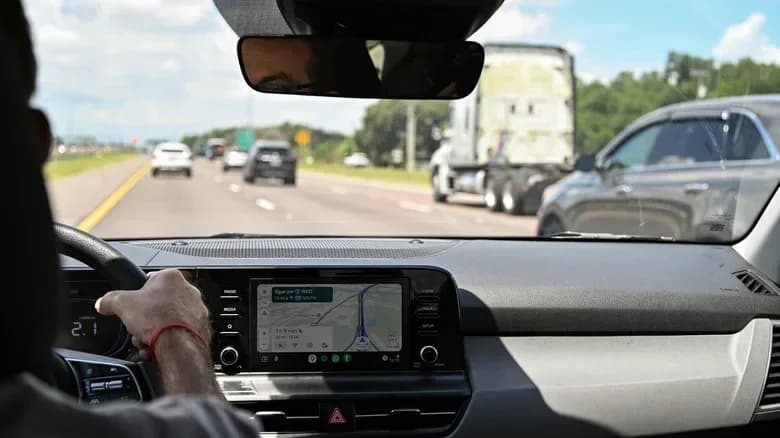
In Google Maps, open Settings > Navigation and turn on Speedometer and Speed limits. During navigation, the app can show your phone's GPS-based speed alongside the speed limit.
In Waze, go to Settings > Map display > Speedometer. Under Show speed limit, choose Always if you want the limit to stay visible. You can also set how far over the limit you have to go before Waze warns you. For example, with a 5 mph threshold on a road marked 35 mph, the alert won't sound at 36 mph. That setting changes when Waze warns you, not the legal limit.
Sources: How to get warnings about speed cameras in Android Auto.