
Choose which actions Messages suggests
If a friend texts to suggest lunch on Friday, Messages might offer to add it to your calendar. That prompt comes from Suggested Actions, not from the keyboard feature that predicts what you’ll type next.
Go to Settings > Apps > Messages > Suggested Actions. Engadget lists five categories you can manage separately: Add to Calendar, Add to Reminders, Add to Notes, Show in Maps, and Flights and Packages. Turn them all off if you don’t want action prompts. Or keep Calendar on and switch off Reminders if you like getting a shortcut for plans but prefer to enter errands yourself.
Sources: How to disable the suggestions in Messages feature for iPhone.
Change keyboard predictions separately

Leave Predictive Text on if you still want suggested words above the keyboard. To remove that row of suggestions, open Settings > General > Keyboard and turn off Predictive Text under All Keyboards. Engadget reports that this also turns off Siri’s suggested replies.
If your complaint is that the keyboard changes a word you’ve already typed, look for Auto-Correction on the same screen. It has its own toggle, so you can change it without turning off word predictions.
Sources: How to disable the suggestions in Messages feature for iPhone.
Reset the keyboard dictionary if predictions go off track
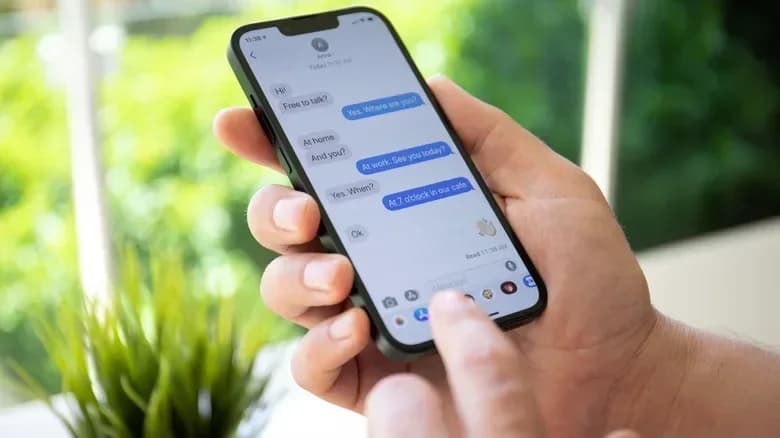
If you like predictive text but the keyboard keeps suggesting an odd spelling or capitalization it picked up from you, try resetting its dictionary instead of turning predictions off. Go to Settings > General > Transfer or Reset iPhone > Reset > Reset Keyboard Dictionary. Enter your passcode, then confirm the reset.
Predictions may be less useful for a while after the reset, so this option is better suited to persistent bad suggestions than to a suggestion row you simply don’t want to see.
Sources: How to disable the suggestions in Messages feature for iPhone.